Draw Cartoons 2 PRO
Zaliv ArmeniaArt & Design
4.6912.00 Reviews
- Version
- 4.03
- Installs
- 50.00K
- Age Rating
- Everyone
Screenshots
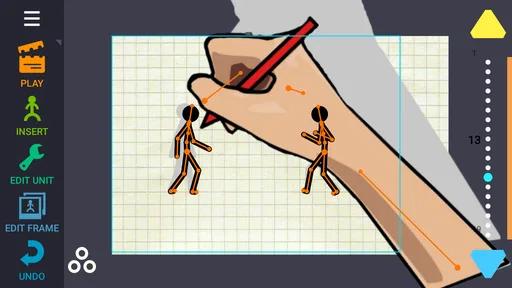
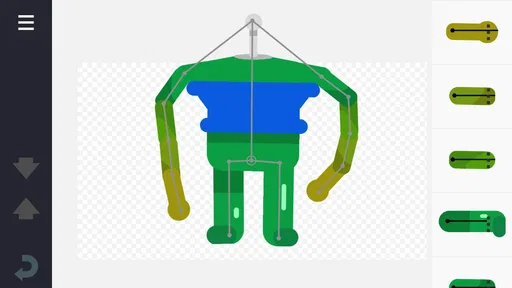
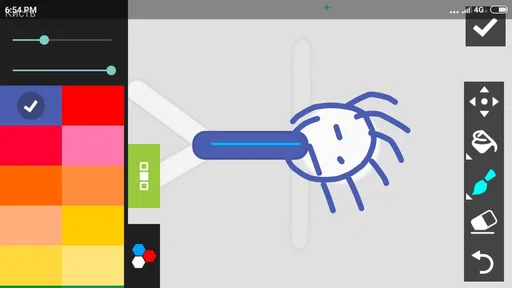
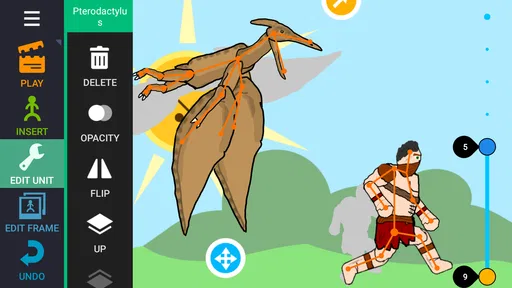
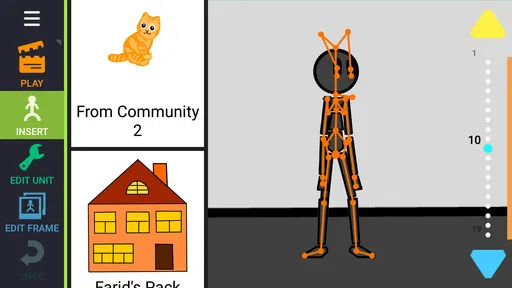
Our Review of Draw Cartoons 2 PRO
 Analysis by Appyee
I approached Draw Cartoons 2 PRO as a practical animation workspace rather than a simple sketchbook, and that distinction matters. It is an art and design app from Zaliv Armenia, aimed at people who want to build moving cartoons on a mobile device instead of creating only still drawings. My first impression was that it rewards patience: the deeper value appears when you plan a scene, separate your artwork sensibly, and make small changes frame by frame.
The app is currently at version 4.03 and supports devices running operating system 10 or later. It costs $9.99, so this is not the kind of download I would suggest casually to someone who only wants to doodle for a few minutes. For a person who genuinely wants to explore 2D animation, though, the one-time purchase can make more sense than juggling a basic drawing app with a separate video editor.
How the current version feels in everyday use
The central appeal is the ability to turn drawings into animated scenes. That sounds straightforward, but animation quickly becomes difficult when every movement requires a new drawing. The workflow here is better suited to building a character, arranging a scene, and then adjusting movement over time. I found that approach much less tiring than redrawing an entire figure whenever an arm, head, or prop needed to shift.
That makes the app especially useful for short cartoons, simple character tests, visual jokes, storyboards, and personal projects. It can also help someone understand the basics of timing. A character that moves too far between moments feels as if it jumps; a character that barely changes can look frozen. Working directly inside an animation tool makes those lessons visible in a way that a normal drawing canvas does not.
The interface does require a learning period. A still-image app usually lets me choose a brush, draw, undo, and export. Animation adds another layer of thinking: I have to know which element belongs in which layer or scene, decide what should remain still, and keep track of what changes. Beginners should expect to spend their first session learning the workspace rather than producing a polished cartoon immediately.
My advice is to begin with a tiny exercise. Draw a ball, make it travel across the screen, and then try a second version where it slows down before stopping. This is a better introduction than starting with a full character, background, dialogue, and several moving objects. It teaches the relationship between drawing changes and perceived motion without burying the user in project management.
A sensible workflow for first projects
I would start by planning the action in words before opening a blank project. “The character looks left, raises a hand, and exits” is enough. Then I would create only the artwork needed for those actions. This prevents a common mobile-animation problem: spending most of the available energy decorating a background that never changes while the actual movement remains unclear.
For a short scene, I found it useful to treat the background as a fixed stage and concentrate on the moving character separately. That reduces unnecessary redraws and makes corrections easier. If the character needs a new pose, I can focus on the pose instead of rebuilding the entire composition. This is one of the most important practical habits for keeping a small animation manageable.
Another helpful technique is to save versions of a scene before making a major change. Animation is iterative, and a change that looks clever in one moment may make the whole movement less readable. Keeping an earlier version gives me a safe point to return to instead of forcing me to reconstruct a pose from memory.
For a realistic everyday scenario, imagine making a short birthday greeting for a friend. I would draw a simple character, animate a wave, and add a large message in the scene. The project does not need detailed art to feel personal. The advantage of this app is that the movement itself supplies much of the charm, while the limitation is that even a short greeting can take longer than expected if I keep refining every pose.
What the long product history tells me
The app was released on August 11, 2013, which gives it a notably long history in a mobile category that changes quickly. I would not interpret that age as proof that every modern workflow is covered. I see it more as evidence that the product has had time to establish a focused identity around cartoon animation instead of becoming a general-purpose art suite.
The current version, 4.03, is the clearest point of reference for someone installing it today. I would judge the present experience by that version rather than assuming that an older tutorial matches the current interface perfectly. Long-running apps often evolve through small adjustments, and even modest changes in menus or project handling can affect how quickly a returning user finds familiar tools.
That history also explains why the app feels more specialized than many newer drawing tools. It is not trying to be a broad illustration studio first. Its strongest reason to exist is the animation workflow. If my goal is painting a detailed poster, editing photographs, or creating vector artwork for professional print, I would choose a different category of app. If my goal is to make a moving cartoon directly on a phone or tablet, the focused design is more relevant.
The store summary calls it an ultimate tool for creating animations, but I prefer a more measured interpretation. It is a dedicated mobile option for learning and producing cartoon-style animation. That is a meaningful strength, but it does not automatically make it the best replacement for desktop software, a full video editor, or a high-end illustration application.
How existing users may experience the update path
Someone who has used an earlier version will probably care less about the basic idea and more about continuity. The important question is whether familiar projects, habits, and controls still feel understandable in version 4.03. I would approach an update carefully: open a copy of an older project first, check the tools I use most, and only then move my main work into the newer environment.
This is not because I expect a particular problem, but because animation projects are more sensitive to workflow changes than ordinary sketches. A small difference in how scenes, layers, or timing are handled can affect a sequence that previously felt predictable. Testing a duplicate is a simple way to protect work while learning the current arrangement.
The app’s audience suggests that many users are hobbyists, students, and independent creators rather than large production teams. Its average rating is 4.6 from around 6.4 thousand ratings, and it has more than 50 thousand installs. Those figures indicate a substantial user base for a paid animation app, but they do not tell me whether the interface will suit a particular person. I still recommend judging it by the kind of animation you want to make.
At $9.99, the purchase decision is easier for someone who expects to return to animation repeatedly. A single short experiment may not justify the cost if a free sketching tool already meets the need. On the other hand, repeatedly trying unrelated free apps can waste time when the real requirement is a dedicated cartoon-making workflow. I would think of the price as paying for focus, not as a promise of professional production power.
Where it fits beside familiar alternatives
Compared with a standard drawing app, this is the better choice when movement is the main objective. A drawing app may offer more comfortable painting, richer brushes, or a cleaner canvas, but it usually leaves animation to another tool. Moving artwork between apps can introduce extra steps and make it harder to preserve the relationship between poses.
Compared with a mobile video editor, Draw Cartoons 2 PRO is more appropriate when the content must be drawn and animated from the ground up. A video editor is usually stronger for cutting recorded footage, arranging clips, adding music, and preparing a finished social post. I would choose the video editor after the cartoon is complete, not as the primary place to create hand-drawn motion.
Compared with desktop animation software, the mobile app wins on immediacy. I can work in a spare moment without sitting at a computer, which is valuable for thumbnail ideas and short personal scenes. Desktop tools remain the better option for complex productions, very large projects, detailed compositing, or teams that need a broad professional pipeline. The trade-off is convenience versus scale.
Compared with free animation apps, the paid version has a clearer commitment to a focused product. That does not mean it will be easier for every beginner. A free app with a simpler interface may be a better first step for a child or a casual doodler, while this one becomes more attractive when I want to learn a repeatable animation process instead of testing a novelty.
Small techniques that make a large difference
The first non-obvious lesson is to animate fewer things than I initially want. A still background, one moving character, and one prop can communicate more clearly than five poorly coordinated objects. This is especially important on a mobile screen, where visual clutter makes it harder to select the right element and notice subtle timing problems.
The second is to use exaggerated poses before refining the drawing. A timid change between poses may look acceptable while editing but disappear when the animation plays. I get better results by making the beginning and ending positions unmistakable, then adding intermediate adjustments only where the movement feels abrupt. This is a useful way to spend effort where viewers will actually notice it.
The third is to separate design decisions from timing decisions. I try to settle the character’s basic appearance before polishing motion. Otherwise, I can end up changing the shape of a character in every frame and accidentally create inconsistent proportions. Once the design is stable, timing becomes a much clearer problem to solve.
A fourth practical insight is to preview often, not only after finishing a scene. A pose that looks attractive on its own may last too briefly to read, while a simple pose may work perfectly if it remains visible for the right amount of time. Frequent previews reveal these issues early and prevent a long chain of drawings built on a weak opening movement.
Finally, I would keep the first finished project intentionally short. Completing a modest animation teaches more than abandoning an ambitious one. It also gives me a reusable pattern: plan the action, establish the still elements, create the key poses, test the timing, and then add detail only where it improves the story.
Limitations I would consider before paying
The biggest limitation is the amount of manual thought animation demands. This app can organize the work, but it cannot replace decisions about acting, timing, composition, and consistency. Someone expecting an automatic “make my drawing move” experience may become frustrated quickly.
The mobile format is another constraint. Touch controls can feel less precise than a mouse, keyboard, or drawing tablet, particularly when I need to edit small details or manage a crowded scene. A stylus-compatible device may make drawing more comfortable, but the app should still be evaluated on the device I plan to use most often.
I would also hesitate to recommend it as the only tool for a long, polished production. A serious project may eventually need dedicated audio work, advanced editing, color management, or a more elaborate export pipeline. The sensible approach is to use this app for the drawn animation itself and bring the result into another tool when the finishing stage demands capabilities outside its focused purpose.
Parents should note that the content rating is Everyone, which makes the app broadly suitable from an age-rating perspective. That does not mean every child will find the workflow easy. Younger users may need help understanding scenes, timing, and saving versions, while older beginners can use those same tasks as a gentle introduction to animation logic.
Who should use it and who should skip it
I would recommend it to a beginner who specifically wants to make cartoons, a student practicing visual storytelling, or an independent creator who values working away from a desktop. It is also a good fit for someone who enjoys refining a sequence gradually and does not mind learning through small experiments.
I would skip it if I only need a quick drawing pad, a photo editor, a video cutter, or a professional desktop replacement. I would also think twice if I dislike frame-by-frame decisions or want instant templates to produce polished social videos. In those cases, a conventional drawing or video app will probably feel faster and less demanding.
My own recommendation is conditional but positive: buy it when the word “animation” describes the project, not merely an occasional effect. The app’s focused purpose, long development history, current version 4.03, and strong average rating make it a credible choice in its niche. The $9.99 price is reasonable for a returning hobbyist, but harder to justify for someone who may open it once.
Before committing to a major project, I would test three things on the intended device: how comfortable drawing feels, how quickly I can find the animation controls, and whether a short scene can be completed without losing track of the moving parts. Those tests answer more than a feature checklist because they reveal whether the workflow matches my patience and creative habits.
What I would watch as the app continues
For future development, I would pay attention to how well the app preserves a simple learning curve while supporting more ambitious projects. The best evolution would not be endless additions for their own sake. It would be improvements that help users manage longer scenes, revise existing work safely, and move finished cartoons into the next stage without weakening the app’s directness.
I would also watch how version 4.03 behaves for both newcomers and people returning with older projects. A mature app has two audiences to serve: beginners need clear guidance, while experienced users need dependable continuity. Those goals can conflict, so thoughtful organization matters more than a crowded collection of controls.
After using it, I see the main trade-off as control versus convenience. You get a focused place to create cartoon motion, but you must supply the creative decisions and accept the limits of mobile production. For me, that balance works best on short, personal, clearly planned animations.
In the end, Draw Cartoons 2 PRO is not a shortcut around learning animation. It is a practical space in which that learning can happen. Zaliv Armenia has kept the product centered on cartoon creation, and the result is most convincing when I treat it as a dedicated animation notebook: plan small, separate still and moving elements, preview constantly, and finish projects before expanding them. If that sounds like the kind of creative process you want, this app is worth serious consideration.
Verdict
Strengths of Draw Cartoons 2 PRO
- Intuitive timeline makes editing character movements easy to manage.
- Large library of body parts and props supports varied cartoon designs.
- Voice recording adds personality and timing to animated scenes.
- Projects can be saved and revisited for gradual improvements.
- Export options make it simple to share finished animations.
Limitations of Draw Cartoons 2 PRO
- Advanced tools may take time to learn for first-time animators.
- Longer projects can require considerable storage space on the device.
- Rendering complex scenes may be slow on older phones and tablets.
- Some content and features may depend on in-app purchases.
- Precise drawing and editing can feel difficult on smaller screens.
Similar Picks in This Category
View All
Canva: AI Photo & Video Editor
Canva4.8

PENUP – Drawing-sharing SNS
Samsung Electronics Co., Ltd.4.5

Crafto
Kutumb App4.6

Sketchbook
Sketchbook4.1

ibis Paint X
ibis inc.4.5

Adobe Express: AI Photo, Video
Adobe4.6
Frequently Asked Questions
What is Draw Cartoons 2 PRO, and what can you create with it?
Draw Cartoons 2 PRO is an animation app designed for creating short cartoons and animated scenes on a mobile device. It combines a character-building system with a timeline editor, allowing you to pose figures, add backgrounds, insert dialogue or sound effects, and arrange movements frame by frame. It is suitable for beginners, although producing polished animations still requires patience and practice.
Is Draw Cartoons 2 PRO suitable for beginners without drawing experience?
Yes. You do not need advanced drawing skills to start using Draw Cartoons 2 PRO because the app provides ready-made characters, objects, and animation tools. Beginners can experiment with poses and movement using the visual editor before designing more original scenes. However, the interface may take some time to understand, especially when working with layers, keyframes, timing, and multiple characters in one project.
Does Draw Cartoons 2 PRO work offline?
Many of the core animation tools can generally be used without a constant internet connection once the app and required resources are installed. You can create and edit projects locally, which is convenient when traveling or working without mobile data. Internet access may still be needed for downloading additional content, checking online resources, updating the app, or sharing projects through external services.
What features are included in the PRO version of Draw Cartoons 2?
The PRO edition is intended to provide a more complete experience than a basic version, with access to additional creative resources and fewer limitations while making animations. Depending on the release and platform, the exact benefits can vary, so users should review the current store listing before downloading. It is best suited to people who plan to create regularly rather than only test animation once.
Can I export and share animations created in Draw Cartoons 2 PRO?
Draw Cartoons 2 PRO is built for creating finished animated clips that can be saved and shared, although available export formats, resolution options, and sharing methods may depend on the device and app version. Before starting a large project, check the export settings and available storage. Longer animations can require considerable processing time and may produce larger files, especially at higher quality.
